Create templates for tasks, timelines, floorplans & more
Create templates and import them into any event.
Key Takeaways
Create templates for to-dos, timelines, floorplans and questionnaires.
You can create reusable templates for To-Do lists, Timelines, Questionnaires, Floor plans, Contracts, and Notes — build the structure once, then apply it to any event.
Already built the work inside a real event? Select the To-Dos or Timeline items you want — or open the event’s Floor plan — and use “Save as template” to turn what you built into a reusable template for future events. Due dates are saved relative to the event date and owners are saved as roles, so the template adapts to whichever event you apply it to next.
Part 1: Creating To-Do templates
The way you set up your templates is up to you. You can choose to set them up by:
Language (eg. English template)
Event type (eg. 3 day planning list)
By date (eg. only items between month 12-10)
Here's an example:

Step 1: Add a to-do template & add list items
Go to the Template section and click on "+ Add To-Do Template."
Give your template a name and description, like "3 Day Events - English 🇬🇧, A to-do template for 3-day weddings in the UK." Click Save.
Click on the "Add Item" button to start adding list items to your template.
✏️ Optional: Pre-Assign owners, categories, due dates (eg. 12 months out from event date) and priorities.
⚠️ Please note: Add your to-do list items the order you would like them to appear in your template (currently not possible to re-order)
Step 2: Adding to an event
Navigate to the event > to-do's
Select a template from the dropdown menu.
Choose the items you want to add.
Here is a 2min to-do template demo:
Part 3: Creating Timeline Templates
Create multiple timeline templates and reuse them across your events! Import a timeline template into an event and it will automatically set to the ceremony date (or adjust using "date adjustment" for multiple events)Pre-assign times & edit if needed in the eventDuplicate templates to adjust for languages/event types
Step 1: Add a timeline template & add list items
In the Template section, click on "+ Add Timeline Template."
Provide a name and description, such as "3 Day Italy Wedding Timeline, A timeline template for 3-day weddings in Italy." Click Save.
Click on the "Add Item" button to start adding list items.
✏️ Optional: Pre-set start/end times and dates. Use "date adjustment" for presetting dates (0 means the timeline item will be set to the main event date when imported into the event). Adjust to -1 for the day before, or +1 for the day after.
⚠️ Please note: Add your to-do list items the order you would like them to appear in your template (currently not possible to re-order)
Here is a 2min timeline template demo:
By following these steps, you'll be able to create and customize both to-do and timeline templates for your events with ease!
👉 View the following guide to learn how to share contacts and templates with your team members.
Part 4: Creating Floorplan templates
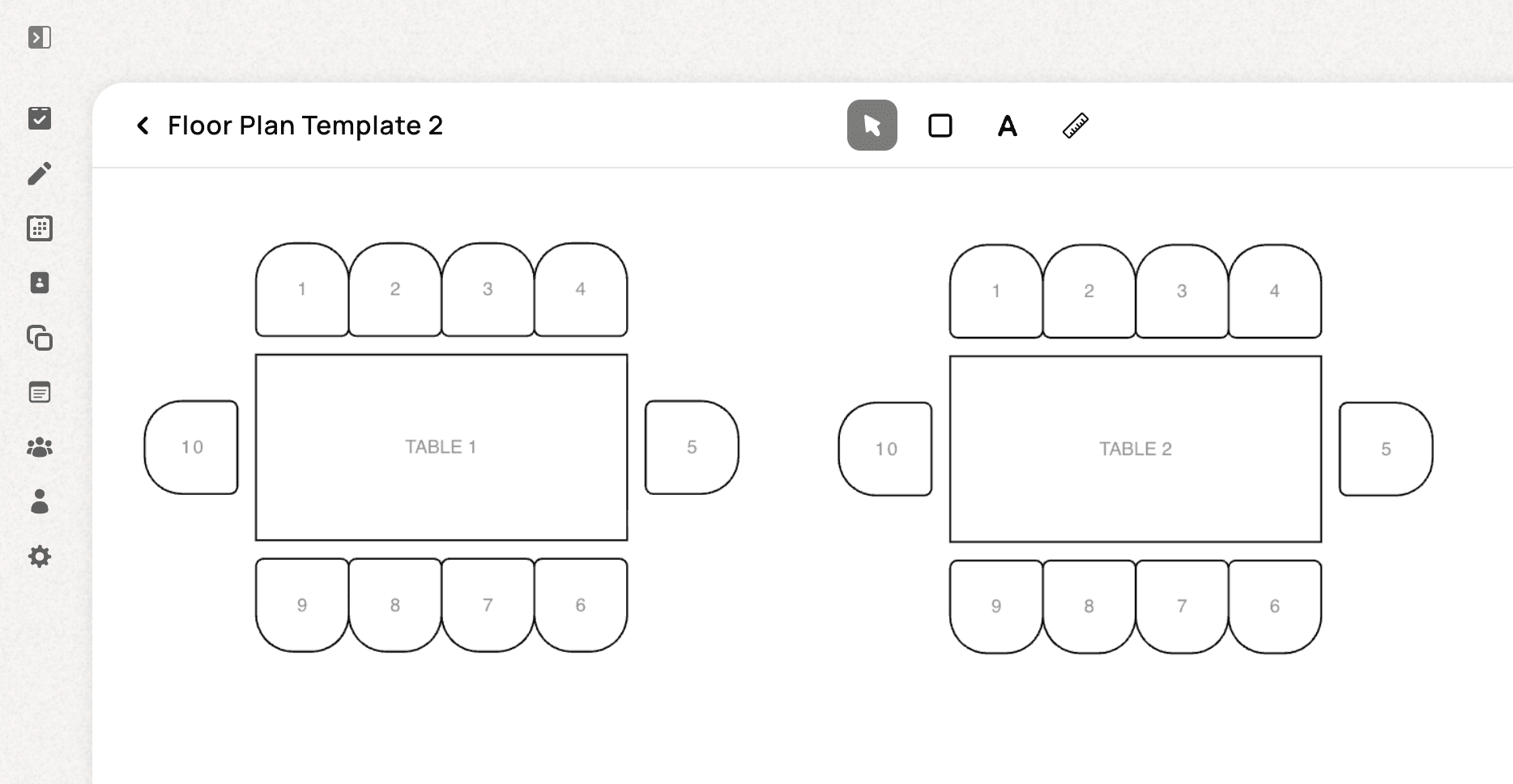
Step 1: Add a floorplan template & add items
In the Template section, click on "+ Add Floorplan Template."
Build the floorplan as usual. Visit this guide on how to build floorplans.
Part 5: Creating Questionnaire templates
Step 1: Add a questionnaire template & add questions
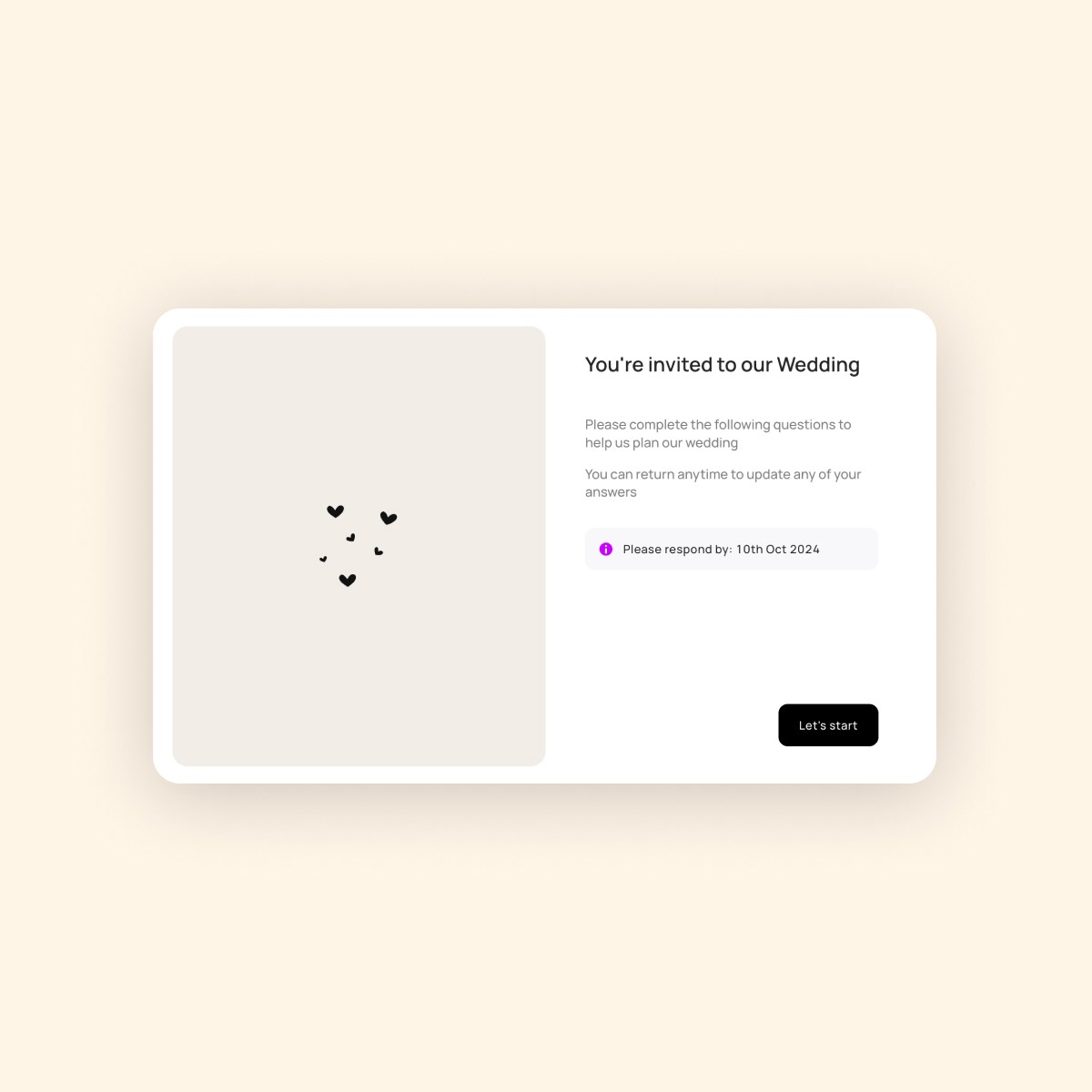
In the Template section, click on "+ Add Questionnaire Template."
Build the questionnaire as usual. Visit this guide on how to build questionnaires.